

What NovelaSonora is
NovelaSonora sets a chapter of a novel to music. It reads the chapter, works out how long it takes to read, and divides it into scenes. It then recognises the character of each scene (calm, suspense, action, tenderness…) and composes an orchestral soundtrack exactly as long as the reading. Each scene plays with its own recipe, and every character and place has a theme that returns whenever it appears, in the other chapters of the book too.
NovelaSonora runs on the Symphonic Orchestrator engine. Everything that plugin does with the music (listening, editing, exporting to your DAW, balancing libraries) is here as well, in the Listen and edit, Export, Balance and Advanced tabs.
- Text formats:
.txt,.md,.docxand.epubbooks. - Analysis: with an AI (Claude, OpenAI, OpenRouter, a local model in LM Studio, or any chat by copy and paste) or without AI.
- Result: the music as MIDI and WAV, plus a map that says at which second of the music each paragraph starts.
Installing and first launch
Run the installer and choose its language. It installs these items; all of them except the plugin can be unticked:
- the VST3 plugin;
- the standalone application (
NovelaSonora.exe); - the NovelaSonora Medidor plugin, for balancing your DAW libraries;
- the Tutti Orchestra sampler.
You don't need a DAW to write and listen: the standalone application is enough.
Download the sounds
The sound bank is downloaded once. In the Listen and edit tab, press Download sounds:
- it is about 510 MB, and the installation needs about 1.2 GB of free disk space;
- it keeps downloading if you switch tabs, and the bank loads by itself when it finishes;
- the bank is "DB Soft Orquesta", with 65 public-domain (CC0) instruments you can use in commercial work;
- it is installed in
%LOCALAPPDATA%\Tutti\Bancos, which the three DB Soft plugins share.
Language
The selector in the top right corner changes the interface language when you reopen the window. The language also changes the analysis: with the interface in English, the AI is asked in English, which is what you want for a novel in English.
The window
There are five tabs:
- Chapter: where you start.
- Listen and edit: the music, with the pianoroll and the orchestra.
- Export, Balance and Advanced, which holds Base melody, Structure and Recipes.
The header is the Orchestrator's:
- Undo, which says what it will undo;
- A/B, to compare with the previous generation;
- Project…, to save and load the project and for the license;
- the language.
Drop a .txt, .md, .docx or .epub file on the window and it opens in the Chapter tab.
First steps: music for a chapter
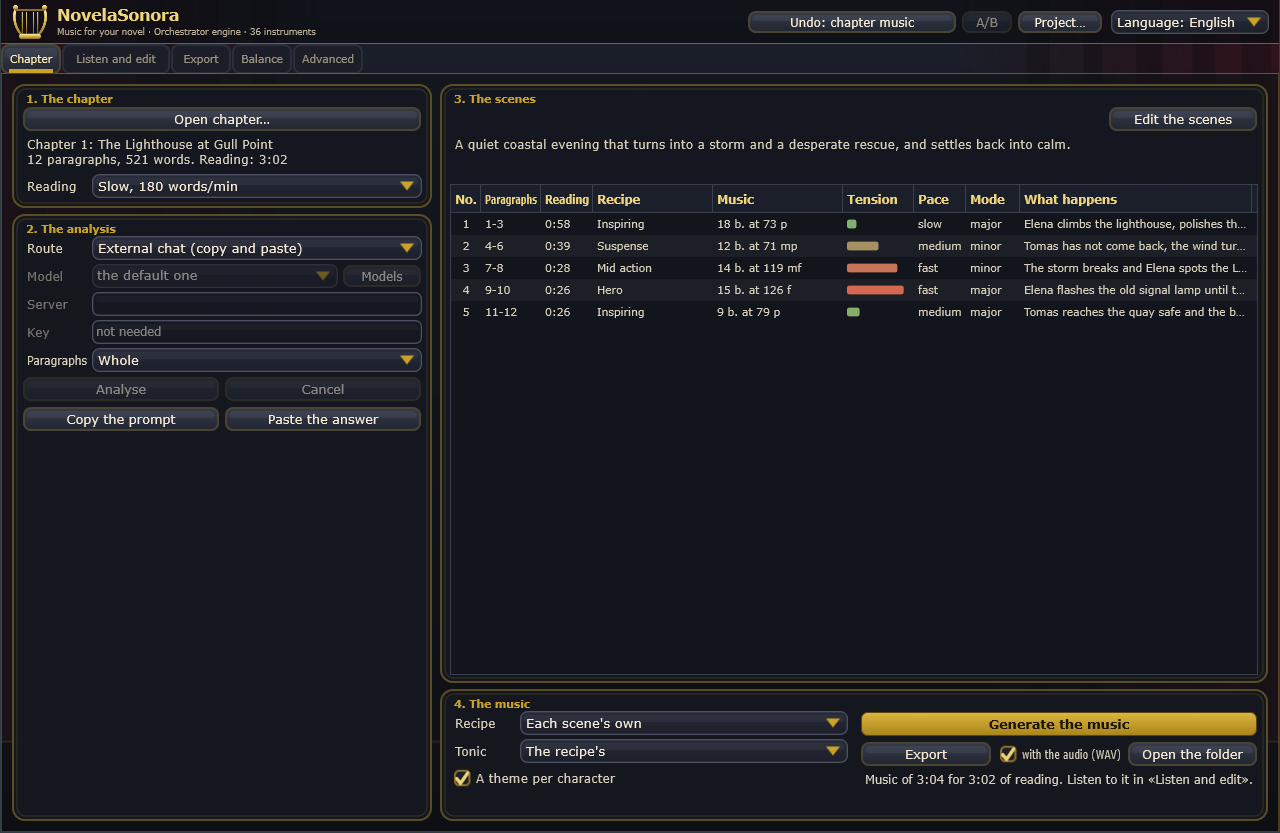
- Open the chapter. In 1. The chapter, press Open chapter… and choose the file. You will see the title, how many paragraphs and words it has, and how long it takes to read. Choose the speed under Reading.
- Analyse it. In 2. The analysis, choose a Route. If you have no AI account, choose External chat (copy and paste) and follow these steps; for an instant result, choose No AI. Then press Analyse.
- Check the scenes in 3. The scenes. If something is off, use Edit the scenes.
- Press Generate the music in 4. The music. The status line confirms the length, for example "Music of 3:04 for 3:02 of reading".
- Listen in Listen and edit, with Play the orchestra. Above the pianoroll you see the paragraph that matches each moment.
- Export it with Export. A folder is created with the MIDI, the WAV and the paragraph map.
1. The chapter
Open chapter… accepts .txt, .md, .docx and .epub.
- Encoding of .txt files: they are read as UTF-8, or as old Windows text if they aren't, so accents, quotes and dashes arrive intact.
- .docx files: the text of each paragraph of the Word document is taken.
- .epub files: a book opens at its first chapter and adds a selector to switch chapters (see Books).
How it finds paragraphs, scenes and the title
- Paragraphs: if the text separates paragraphs with blank lines, a blank line separates paragraphs; if not, each line is a paragraph.
- Scene breaks: a line made only of symbols, such as
***,* * *,#,---,~~~or§, marks a scene break. It doesn't count as a paragraph, but the analysis takes it into account and the reading adds a pause. - Title: the first block, if it starts with
#, or with "Chapter", "Prologue" or "Epilogue" (or their Spanish equivalents), or if it is just a number. The title doesn't count as a paragraph either.
Reading
The reading speed decides how long the music lasts.
| Option | Words per minute |
|---|---|
| Silent | 230 (the default) |
| Audiobook | 150 |
| Slow | 180 |
| Fast | 300 |
Each paragraph gets a short pause added, and each marked scene break two seconds. If you change the speed, the analysis is kept, but you have to press Generate the music again.
2. The analysis
The analysis divides the chapter into scenes. For each scene it gives a summary, its tension, mood and agitation, the pace of the action, the mode (major or minor), the musical recipe that suits it best, who carries it and where it happens.
The routes
| Route | What it is | You need |
|---|---|---|
| Claude (Anthropic) | Anthropic's model, over the internet. | An API key |
| OpenAI | OpenAI's models, over the internet. | An API key |
| OpenRouter | Many different models with a single key. | An API key |
| LM Studio (local) | A model running on your own computer. The text never leaves it. | LM Studio open, with a model loaded and the server started |
| External chat (copy and paste) | You take the text to any chat (ChatGPT, Claude.ai…) and bring the answer back. No network, no keys. | Nothing |
| No AI | Scenes from the text's scene breaks, and emotion from a word list. Basic, but always available. | Nothing |
- Model: the model to use. Models asks the server for its list. Claude has a default; with OpenAI and OpenRouter, choose one.
- Server: the server address. If it is empty, each route uses its own. Use it for LM Studio on another computer or port.
- Key: your API key. It is stored encrypted on your computer, one per route, and never inside the project: a project gets shared, and the key would go with it.
- Paragraphs: Whole, or cut to 600 or 300 characters. Cutting helps with local models that have a short context, or when the server says the chapter is too long.
- Analyse and Cancel: a long chapter can take a couple of minutes. If it doesn't fit in one request, it is analysed in parts that are stitched together at the end.
With an external chat, step by step
- Under Route, choose External chat (copy and paste).
- Press Copy the prompt. The full text goes to the clipboard: the instructions and the chapter, with numbered paragraphs.
- Paste it into the chat of your choice and send it.
- Copy the chat's entire answer.
- Back in NovelaSonora, press Paste the answer.
Reading the answer is forgiving: the JSON can be inside a code block, have text around it, or contain small mistakes. Anything it fixes is reported under the chapter's tone.
Some models refuse to analyse violent scenes. When that happens, the message says so: try another route, for example the external chat with a different chat.
3. The scenes
The chapter's overall tone appears above the table. The table has one row per scene:
| Column | Contents |
|---|---|
| No. | The scene number. |
| Paragraphs | Which paragraphs it covers. |
| Reading | How long it takes to read. |
| Recipe | The music that will play (see the recipes). |
| Music | Bars, tempo and dynamics, once there is music (for example "18 b. at 73 p"). |
| Tension | A bar, from green (rest) to red (climax). |
| Pace | slow, medium or fast. |
| Mode | major or minor. |
| What happens | The summary, atmosphere, characters and place. |
While the music plays, the scene you are hearing is highlighted in gold.
Editing the scenes
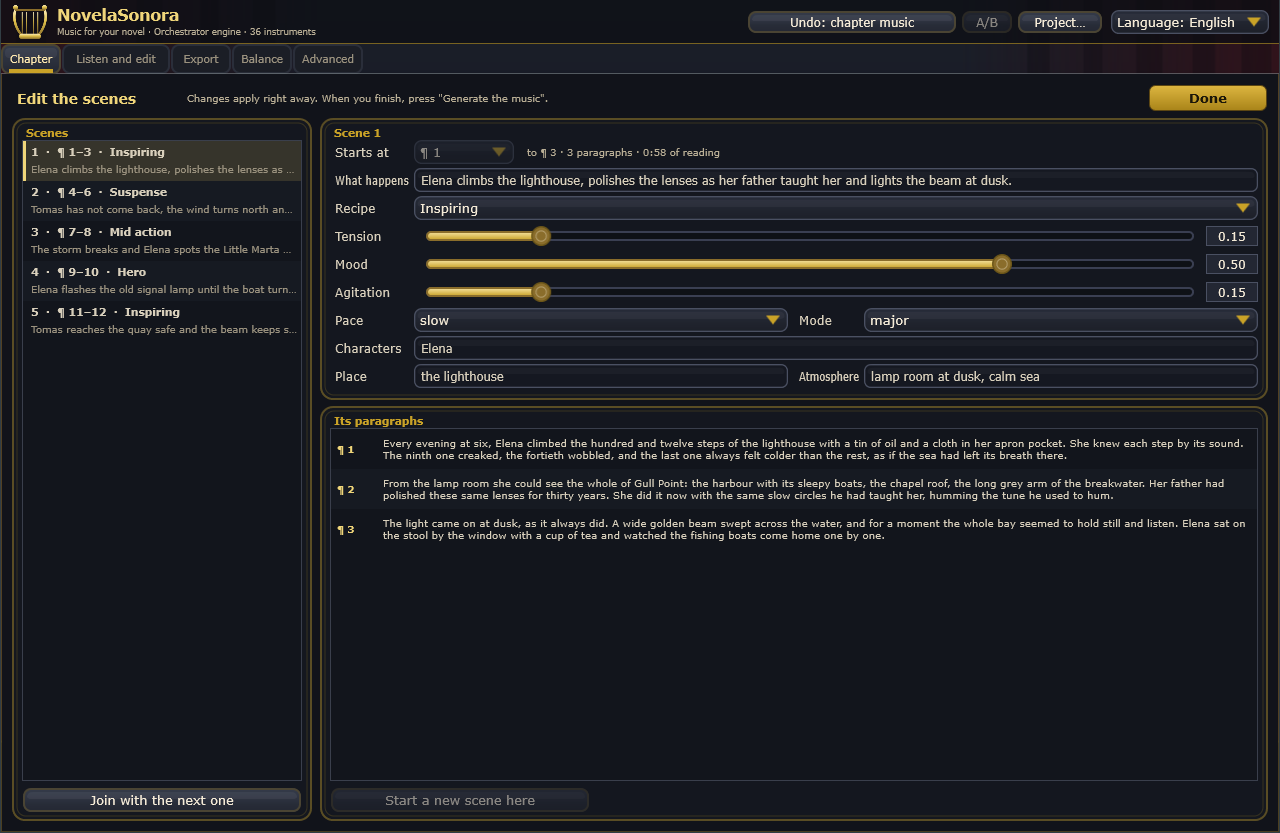
Press Edit the scenes or double-click a row. Changes apply right away; when you finish, press Done and generate the music again.
- Starts at: the paragraph where the scene starts. The previous scene ends just before it.
- What happens: the summary.
- Recipe: one of the twelve, or By the emotion, which picks one from the tension, mood and agitation.
- Tension (from rest to climax), Mood (from sad or threatening to joyful) and Agitation (from calm to agitated).
- Pace and Mode: the mode can be By the mood, major or minor.
- Characters: up to three, the main one first, separated by commas. Each one has its own theme.
- Place and Atmosphere.
- Join with the next one: the next scene becomes part of this one.
- Start a new scene here: splits the scene before the paragraph selected in Its paragraphs. The new scene copies the recipe and everything else; then you adjust it.
The scenes always cover the whole chapter, with no gaps.
4. The music
- Recipe: Each scene's own, or All as… one recipe for the whole chapter.
- Tonic: The recipe's, or a fixed note for the whole chapter.
- A theme per character: every character and place has a theme drawn from its name, which returns whenever it appears, in this chapter and in the rest of the book. When unticked, every scene uses the chapter's theme.
- Generate the music: composes. Each time you get a different theme, and you can undo it and compare with A/B.
- Export: writes the chapter's folder (see below). With with the audio (WAV) ticked, it also writes the music as audio.
- Open the folder: opens it in Explorer.
What is exported
The folder is Documents\NovelaSonora\<chapter title>; for a book, Documents\NovelaSonora\<book>\<chapter>.
| File | What it is |
|---|---|
musica.wav | The music as audio, if "with the audio (WAV)" is ticked. |
musica.mid | MIDI with one track per instrument, plus each scene's tempo, meter and key signature. |
mapa.csv and mapa.json | For each paragraph: its scene, the second at which it starts in the reading and in the music, and its first words. Use them to sync the music with an e-reader or an audiobook. |
analisis.json | The scene analysis. |
prompt.txt | The analysis prompt. |
How it becomes music
Each scene is a section of the piece, with its own recipe. The recipe sets the tempo range, the meter, the scale, the loudest dynamic and how the theme is presented. Within that frame, tension and agitation push the tempo and intensity, and the chapter's tensest scene goes up a tone as its climax. A common note links each scene to the next, and the chapter closes on the tonic.
| Recipe | For | Tempo | Character |
|---|---|---|---|
| Love | tenderness, intimacy, reunion, sweet nostalgia | 60–92 | major, lyrical |
| Sadness | grief, loss, loneliness, farewell | 50–80 | minor, slow and broad |
| Suspense | threat, mystery, tense waiting, investigation | 60–90 | Phrygian, with a pedal, in fragments |
| Mid action | chase, escape, hurry, argument | 96–124 | minor, in motifs |
| High action | fight, battle, chaos, imminent danger | 120–150 | Phrygian in 7/8, loud |
| Hero | courage, great deed, triumph | 108–128 | Mixolydian, bright |
| Villain | antagonist, cruelty, dark power, betrayal | 84–110 | harmonic minor |
| Fantasy | magic, wonder, dream, childhood | 66–96 | Lydian in 3/4 |
| Grandeur | revelation, the sacred, vast landscapes | 60–84 | major, open fifths |
| Comedy | humour, mix-ups, mischief, lightness | 108–140 | Lydian, staccato |
| Inspiring | hope, overcoming, luminous calm | 72–100 | major, lyrical |
| Epic | great battle, destiny, culminating moment | 84–112 | minor, loud |
Character and place themes
Each name generates a two-bar theme, always the same one ("Martha" sounds the same in chapter 1 and chapter 20). The four characters and two places that take up most of the chapter get themes. In each scene, the protagonist carries the melody and the other characters take turns with it. The place plays as a countermelody, slow and soft. A theme isn't repeated literally: each time it appears it is transformed (transposed, inverted, augmented, in sequence…) to suit the scene's character, and in a long scene it comes back to its original form at the end.
Books (.epub)
When you open an .epub, the Chapter selector appears. Parts of the book without text (cover, credits, contents) don't count as chapters, and a chapter split across several files is joined back together.
- When you switch chapters, you analyse the new one. If that chapter was already exported, its analysis comes back without calling the AI again.
- The characters and places of the chapters already analysed are passed to the next chapter's analysis, so the AI names them the same way. That way they keep the same theme throughout the book.
- Whole book… analyses, sets to music and exports every chapter, one after another, each in its own folder.
- The first press tells you how many AI calls it will make. The second (Start) sets it going, and Stop the book halts it.
- At the end it writes
personajes.txt, listing the chapters in which each character and place appears. - It doesn't work with the external chat, since each chapter would need copying and pasting.
DRM-protected .epub files can't be read. Use an unprotected copy of a book of your own.
Listen and edit
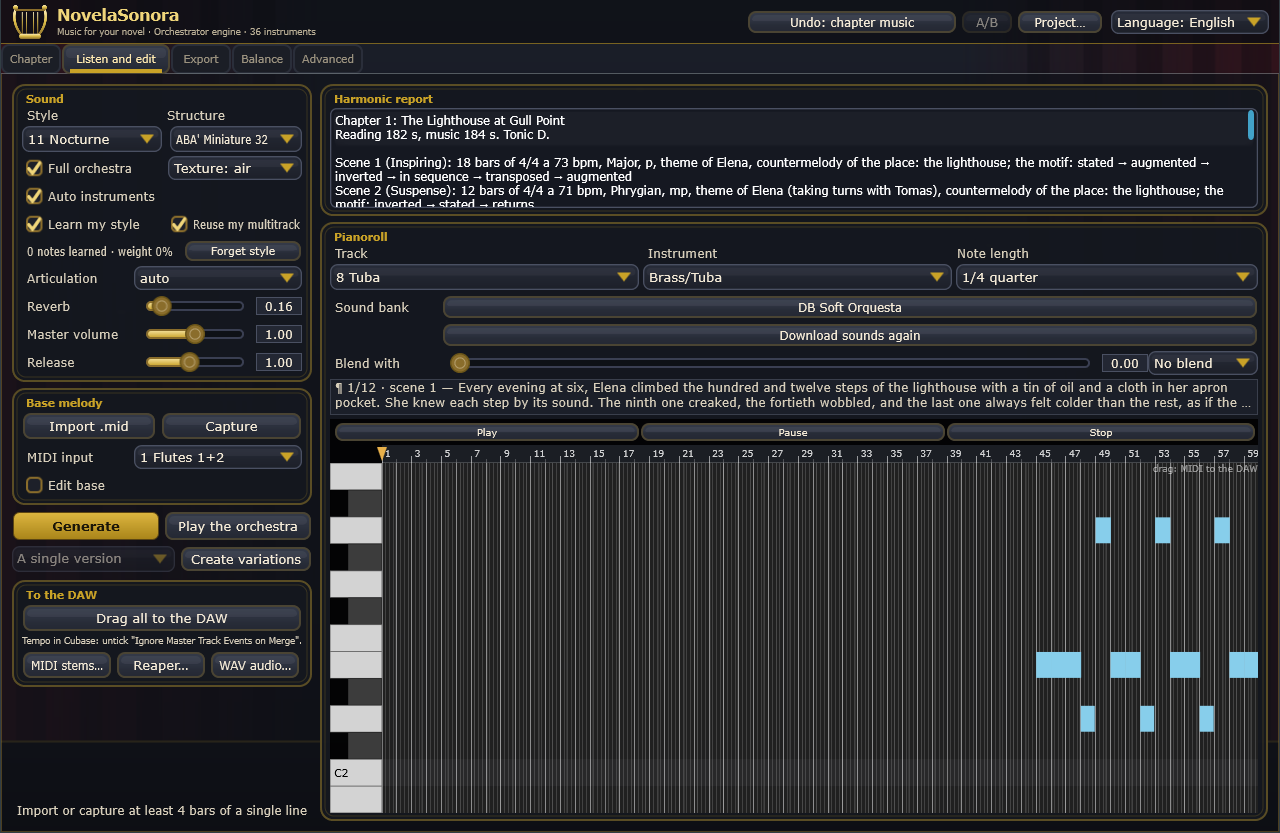
This is the Orchestrate tab of Symphonic Orchestrator:
- the report;
- each instrument's pianoroll, with Play, Pause and Stop;
- Play the orchestra;
- the choice of instruments;
- the sound bank and Download sounds;
- the buttons for taking the music to your DAW.
What is specific to NovelaSonora:
- The reading strip, above the pianoroll: it shows the paragraph that matches the playhead ("¶ 1/12 · scene 1 — …"). Move the playhead on the bar ruler to travel through the chapter.
- When a chapter already has music, Generate and Create variations recompose it with its recipes and a new theme, rather than orchestrating a loose melody.
- For Cubase: if you drag the music out, untick "Ignore Master Track Events on Merge" in Cubase so that each scene's tempo changes come through.
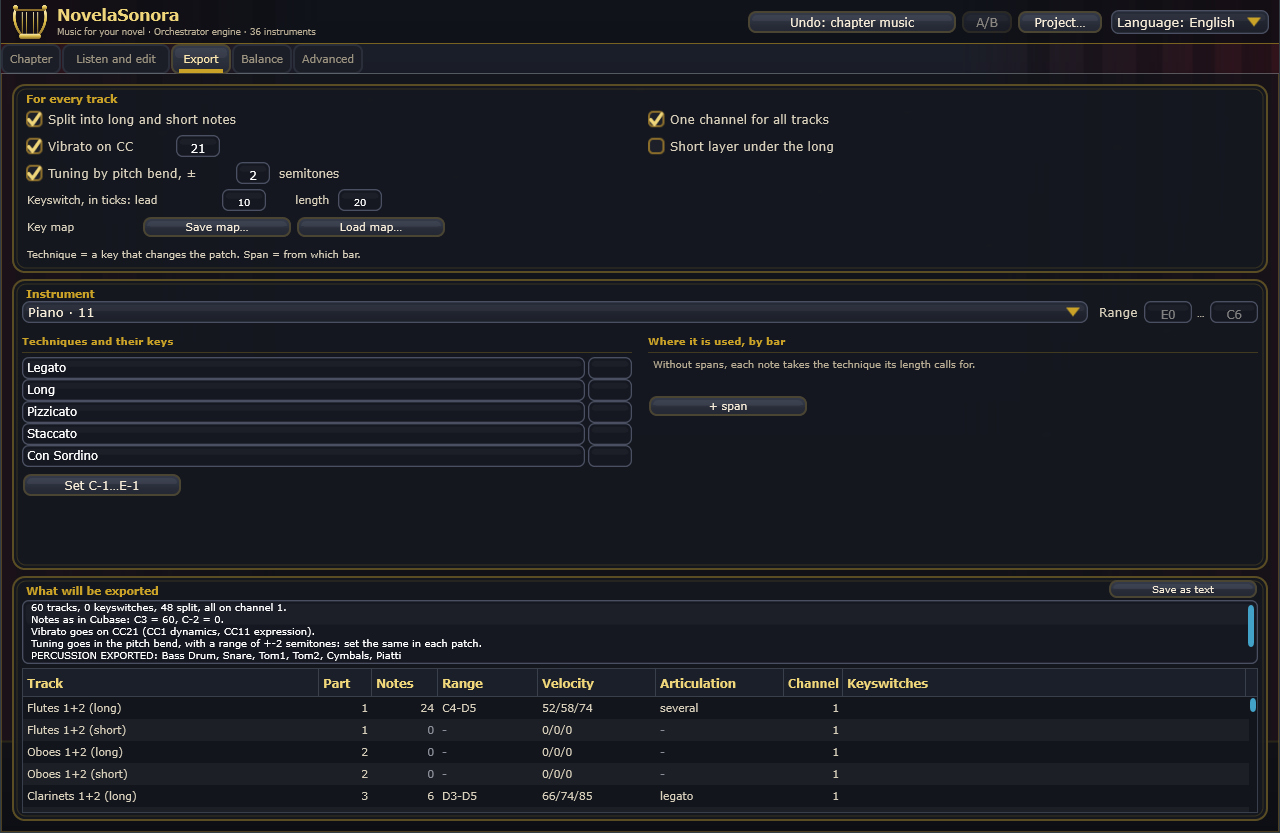
Export, Balance and Advanced
These work just as they do in the Orchestrator. Its manual explains them in detail:
- Export: how the MIDI is written for your libraries (long and short notes, keyswitches, vibrato, ranges, percussion).
- Balance: evens out the loudness of your DAW libraries with the NovelaSonora Medidor plugin.
- Advanced: Base melody, Structure and Recipes.
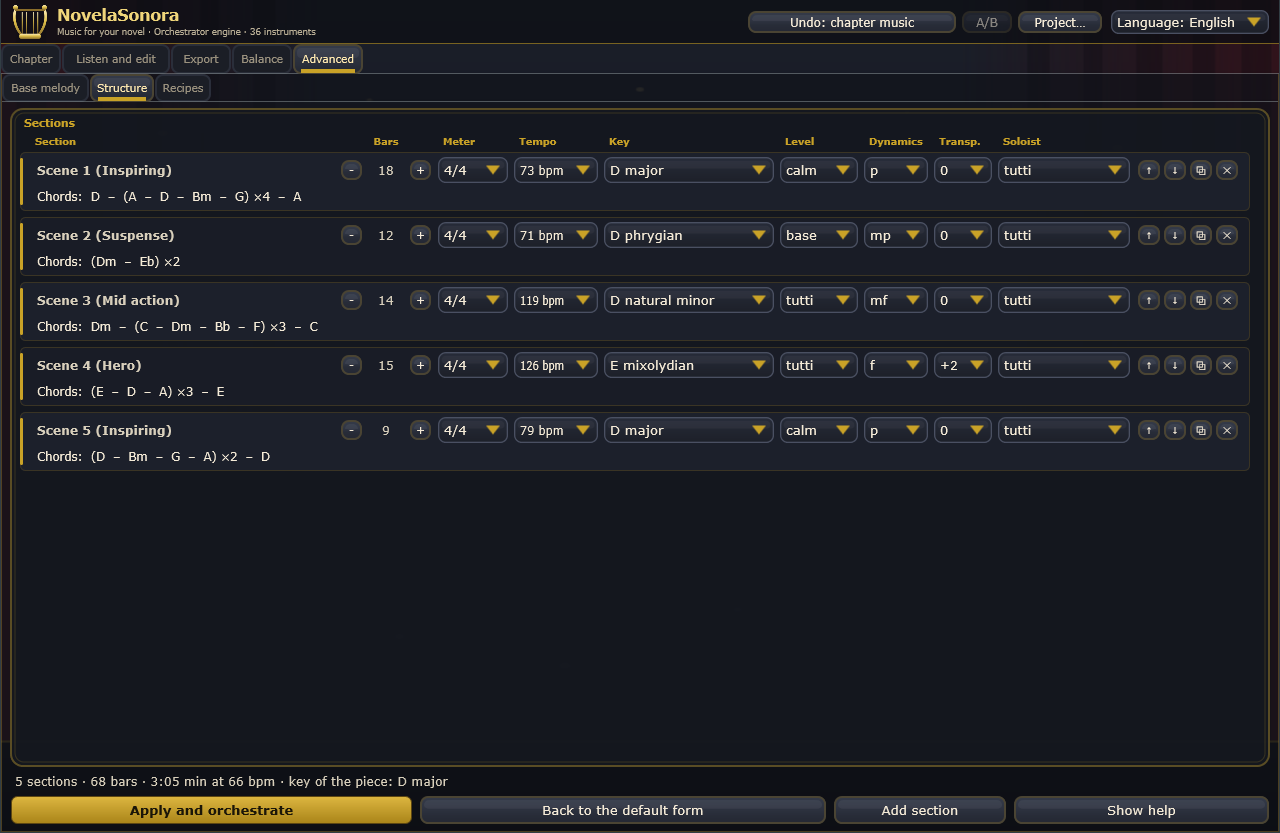
The recipes under Advanced › Recipes are the Orchestrator's orchestration recipes (instruments, mix, structure). They have nothing to do with the twelve scene recipes (Love, Suspense…).
License and demo mode
Without a license, NovelaSonora runs in demo mode. You can open, analyse, compose and listen, but the music isn't exported (no MIDI, no audio), and the sound drops out for a moment every 30 seconds. To activate it, go to Project… › License… (or the button on the demo strip), paste the key from your purchase and press Activate. With the license active, Release this computer removes it from this machine so you can activate it on another.
Questions and common problems
"Unsupported format"
Only .txt, .md, .docx and .epub open. From other formats, save the text as .docx or .txt.
The scenes are split in the wrong places
Mark the scene breaks in the text with a * * * line before analysing, or fix them in Edit the scenes.
LM Studio doesn't connect
Open LM Studio, load a model and start the local server (Developer tab). If it runs on another computer or port, type its address in Server.
"The chapter is too long for one request"
Choose a cut option under Paragraphs, or use a model with a longer context.
The music isn't as long as the reading
Check the speed under Reading. If you change it, press Generate the music again.
Nothing plays
In Listen and edit, check that a bank is loaded; if not, press Download sounds.